Shareable content object model or SCORM is a technical standards suite for e-learning software products that ensures seamless communication and interactions of online training content in learning management systems (LMS). SCORM is still as essential as it was before to ensure the content works across all types of learning management systems and follows industry standards for interoperability.
Native Open edX is not compatible with SCORM as it was developed around xAPI and native Xblock framework creates significant challenges for traditional e-learning content leading to tracking limitations and inconsistencies in user experience.
Let’s uncover the meaning of SCORM in Open edX, how Open edX handles External Content, methods to use SCORM, implementation, common challenges and solutions.
What is SCORM 1.2 vs 2004
SCORM is a set of technical standards that involves SCORM 1.2 and SCORM 2004 protocols. SCORM 1.2 is a basic, highly compatible e-learning tracking (pass/fail/completion) industry standard. SCORM 2004 comes with advanced capabilities of higher bookmarking capacity, complex sequencing and interaction tracking.
Key components:
- SCOs (Shareable Content Objects)
- LMS Communication (API Adapter)
- Manifest Files (imsmanifest.xml)
- limitations of Scorm Ecosystems
| Key components | SCORM 1.2 | SCORM 2004 |
|---|---|---|
| SCOs (Shareable Content Objects) | Basic reusable learning units, limited sequencing control | Better structuring with sequencing and navigation rules |
| LMS Communication (API Adapter) | Uses simple API (LMSinitialize, LMSsetvalue, etc.) | Enhance API (initialize, setvalue, etc.) |
| Manifest Files (imsmanifest.xml) | Defines course structure and resources | Includes sequencing and navigation rules |
| limitations of Scorm Ecosystems | No sequencing rules, limited tracking, poor adaptability | Complex to implement, Limited real-time analytics |
How Open edX Handles External Content?
Open edX learning management system handles external content through various integration methods, embedding third-party applications, interactive simulations and media into the course structures. With the assistance of a studio authoring environment, Open edX provides native capabilities allowing creators to build multimedia-rich courses. SCORM is a set of technical standards, not any software product, which is why it is not supported by modern browsers and operating systems; it is particularly designed for communication between e-learning content and learning management systems.
- SCORM Xblock-based integration: It is a technical solution for Open edX platforms to import, display, and track interactive online learning content created in SCORM.
- SCORM iframe embedding: The process of using an HTML <iframe> tag for displaying an interactive online learning course directly inside a webpage is SCORM iframe embedding.
- SCORM Third-party tools: External software applications used to create, edit, test, or host online learning content with SCORM compliance that functions in compatible learning management systems.
Methods to Use SCORM in Open edX
SCORM XBlock Integration
SCORM Xblock is a plugin that enables you to upload and run SCORM packages and interactive learning content inside your course. You can install Xblock into the Open edX server by using tutor or native/devstack installation. To install it using tutor
1) Go to the requirements directory on your server “cd.local/share/tutor/env/build/openedx/requirements”
2) Clone the XBlock repository into this folder
“git clone <xblock-repository-url>”
3)Add the XBlock to private.txt
“echo “-e ./<xblock-folder-name>” >> private.txt”
4) Recreate the Open edX Docker images
“tutor images build openedx”
5) Restart your services
“tutor local reboot”
To install it using Native/Devstack Installation
1. Locate the edx-platform directory and log into the container/environment.
2. Install the Xblock using pip
“pip install /path/to/xblock”
3. Restart the LMS and CMS services
“sudo /edx/bin/supervisorctl restart edxapp:lms
sudo /edx/bin/supervisorctl restart edxapp:cms”
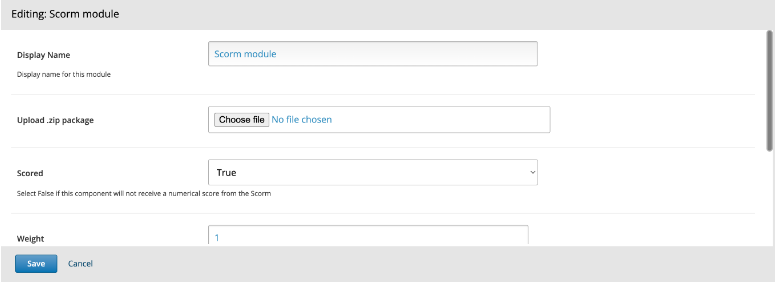
After the successful installation, upload the SCORM .zip package, add it as a component in the course unit and configure display settings, grading and completion rules. This helps in tracking completion, score and time spent on courses by getting data from SCORM content to LMS and showing learner analytics to instructors.
Using External SCORM Players
To utilize external SCORM players, Open edX relies on these methods
1. SCORM Cloud Integration
Cloud-based services allow applications to import, launch and track e-learning standards such as SCORM, xAPI, cmi5, AICC, and LTI using a RESTful API.
2. Embedding via Learning Tools Interoperability (LTI)
By using Learning Tools Interoperability(LTI), you can host online learning content on separate platforms such as SCORM Cloud and natively demonstrate the content inside your learning management system. This allows centralized tracking and content management.
3. Prepare Content and Gather LTI credentials.
Upload the SCORM 1.2 or 2004 package to the external player.
Generate LTI 1.3 credentials by getting LTI 1.3 information through an external tool provider and get 1) initiate login URL 2) Redirection URLs 3) JWKS URL 4) Tool ID (client ID)
4. Configure the External tool in your learning management system
Go to system settings – external tools or LTIApp section
Configure by URL or manual entry
Add initiate login, redirection URL, JWKS URL and Tool ID from your SCORM provider. And enable permissions to access data.
5. Embed/Dispatch the SCORM content.
After the registration, you can add the content to your course.
Select “external tool” or “LTI tool” option by creating a new module.
Apply the URL provided by an external tool for the SCORM course.
Enable “accept grades from the tool” to sync completion and scores to LMS gradebook insights.
6. Test and Monitor SCORM in Open edX
Preview as a learner and verify the gradebook
Pros and Cons of External SCORM Player vs SCORM XBlock
| Aspect | SCORM External Player | SCORM XBlock |
|---|---|---|
| Setup | Easier | More complex setup |
| Maintenance | Managed Externally | Managed internally |
| Features | Advanced tracking & reporting | Basic tracking |
| Cost | Usually Paid | Mostly free |
| Flexibility | High | Limited |
| Control | Less control | Full control |
Custom Middleware Approach (Advanced)
You can go for a custom middleware approach as well, where you can follow a strategic approach of managing e-learning content through building a SCORM proxy service, which allows you to host SCORM packages in a central repository, enabling external LMS to launch and track content remotely.
edx_xblock_scorm Xblock allows Open edX to display, play and track SCORM 1.2 and 2004 packages and helps in API bridging between SCORM and Open edX. This allows you to track learner completion, progress and score within your Open edX LMS.
This approach is considered when you require advanced analytics, custom workflows and integration with other systems such as CRM, ERP and AI tools.
Step-by-Step Implementation Guide
Step 1: Prepare SCORM package: create a course content using authoring tools and publish a zip file compliant with SCORM 1.2 or 2004 standards.
Step 2: Install SCORM Xblock plugin: Open edX does not support SCORM natively, you’ve to install SCORM XBlock in your Open edX server.
Step 3: Upload SCORM content: Go to studio – add – advanced component – SCORM – upload zip file.
Step 4: Configure SCORM settings: Configure the settings according to grading weight, completion criteria (score, progress, etc) and pass/fail rules.
Step 5: Publish Course: Publish your course content and make SCORM visible to learners
Step 6: Track learner data: Track completion status, score and time spent with SCORM
Tracking and Reporting: SCORM sends data to Open edX through XBlock, such as completion status, score and time spent to monitor progress and learner activity & results.
Completion Tracking: SCORM status checks whether the learner has finished the module or not, but can not track progress inside the module.
Score Reporting: SCORM sends the scores of learners, which is stored into Open edX gradebook and helps in tracking the learners’ performance through marks & percentages.
Limitations in Open edX analytics: Only high-level data is available, and there are restrictions in data visibility and insights.
Mapping SCORM data to Open edX gradebook: Score – grade column, completion – progress status, connecting SCORM results to the course grading system.
Common Challenges & Solutions
| Challenge | Common Causes | Solution |
|---|---|---|
| SCORM not loading | Incorrect package format, missing files, XBlock misconfiguration | Ensure valid SCORM 1.2/2004 package, re-upload zip, check server logs |
| Progress not saving | SCORM not sending completion data, API not connected properly | Verify API calls (lesson_status, completion_status), check browser console |
| Browser compatibility issues | Old SCORM content, Unsupported JavaScript, Pop-up blocking | Test on chrome/edge, enable pop-ups, Update SCORM package |
| Cross-domain (CORS) problems | SCORM hosted on different domain, Blocked API calls | Configure course headers, host SCORM on same domain, use proxy |
| Debugging SCORM API calls | No visibility into SCORM runtime communication | Use browser dev tools, SCORM debug logs, enable verbose logging |
The Bottom Line:
In the modern learning management system, using SCORM in Open edX helps in providing e-learning solutions for reusable content. Open edX utilizes the XBlock plugin to track completion status, score, and time spent by the learner. Open edX only supports high-level reporting, which is why external players’ integration is essential for deep learning analytics.